Codepit.
A terminal cockpit for coding agents. Run Claude Code, Codex, build watchers and git panes side by side in one tiled grid, with live status detection that tells you at a glance which agents are working and which are waiting on you.
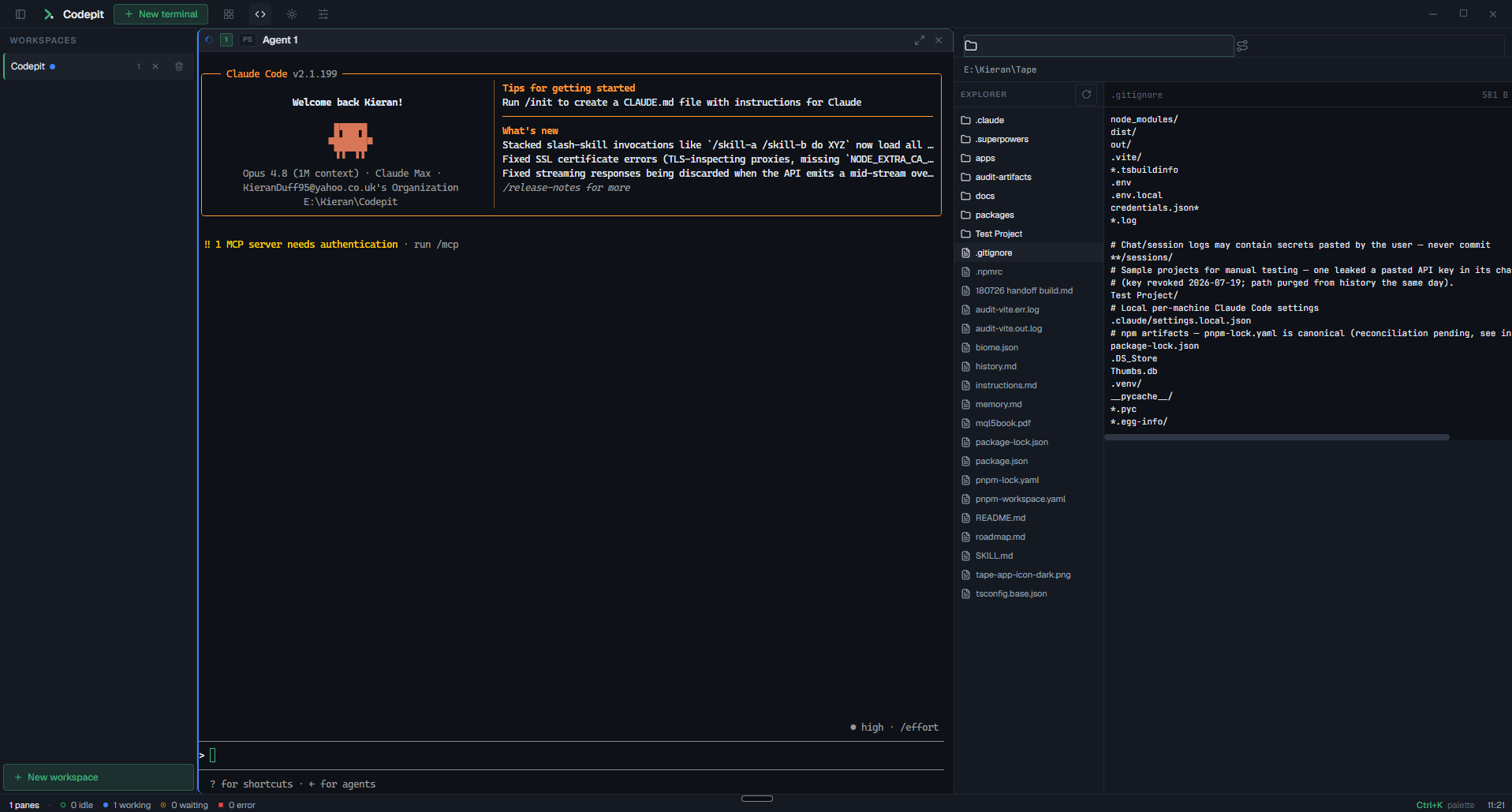
What it is
Run several coding agents in parallel and each one ends up in its own OS window. Switching between them is friction. You lose track of which agent needs you, and past two or three the window-juggling costs more than it saves. Codepit puts your whole agent fleet on one screen and tells you when a pane wants your attention.
Every pane is a real shell with a real PTY (ConPTY via node-pty), so anything that runs in PowerShell runs here, including subscription CLIs that log in through their own browser OAuth flow. No API keys, no wrappers. It is the same terminal architecture behind VS Code's integrated terminal, Hyper and Tabby, with a React shell on top.
I built it for my own work. I run systematic trading research through coding agents, and a normal day has a research agent, a backtest run and a git pane going at once. Codepit is the desk I wanted for that: dark, monospaced, keyboard-first, with colour reserved for state. It is a general developer tool, so it suits any workflow where you run several agents at once.
How you use it
Download the installer, run it, and you are in. From there the loop is simple.
- Open a workspace and spawn panes. Each pane is a real terminal. Split it horizontally or vertically, resize the gutters, rename it, and pick the shell you want per pane: pwsh, Windows PowerShell, cmd, WSL or Git Bash.
- Launch your agents. Start
claude,codexor anything else straight in a pane. Subscription CLIs log in through their own browser flow, so Codepit never touches your keys. - Type, paste or dictate. Copy and paste behave as they do in any terminal, so dropping a command or a whole block of prompt text into a pane is quick. Voice dictation tools also land text into a Codepit pane more reliably than into a raw PowerShell or terminal window, which helps a lot if you drive your agents by voice.
- Read the grid at a glance. Each pane carries a colour-coded border and badge for its state, and the status bar tallies the fleet: how many are idle, working, waiting and in error.
- Let notifications pull you back. When an unfocused pane finishes or asks a question, Windows tells you, so you are not forced to watch every pane.
- Watch the work in the dock. The IDE panel on the right shows the active workspace's file tree and live git changes while your agents edit. You watch; the agents do the editing.
- Close and come back. Named workspaces save their layouts. Reopen Codepit and your terminals, layouts and working directories are restored.
The functions
Everything below ships in the current release. Colour is reserved for state, the layout is dense, and the whole thing is built to be driven from the keyboard.
Tiled terminal grid
A recursive split grid of real PTY-backed shells. Split, resize, spawn, close, rename, and maximise a pane back and forth without losing the layout.
Agent status detection
Each pane knows whether its agent is idle, working, waiting for input, finished or in error, shown as a colour-coded border and badge. Read the whole grid in half a second.
Desktop notifications
Windows toasts fire when an unfocused pane finishes or asks a question. Clicking one focuses that pane. Per-pane and global mute included.
Workspaces and session restore
Named workspaces with saved layouts. Close the app and your terminals, layouts and working directories come back on relaunch.
IDE dock
A side panel showing the active workspace's file tree and live git changes, so you can watch what your agents are editing without leaving Codepit. It is a viewer: you watch the files and git changes while the agents do the editing.
Shell per pane
Choose pwsh, Windows PowerShell, cmd, WSL or Git Bash for each pane. Full ANSI output, colours, cursor control and full-screen TUIs render faithfully.
Command palette
A fuzzy-searchable palette (Ctrl+K) over every command: spawn, split, close, focus move, rename, change shell, maximise, switch workspace and more.
Automatic updates
Codepit checks for new releases on launch and downloads them in the background. A banner lets you restart into the new version when it is ready.
Install
Download the latest installer from GitHub Releases and run it. Codepit is a Windows, x64 desktop app.
Heads up: builds are not yet code-signed, so Windows SmartScreen may warn about an unrecognised app. Click More info, then Run anyway.
Build from source
Requires Node.js 20 or later on Windows. No C++ toolchain is needed: node-pty ships prebuilt Windows binaries.
git clone https://github.com/KDuffDev/codepit.git
cd codepit
npm install
npm run dev          # run in development
npm run dist:win     # build the Windows installer into dist/
Contributions are welcome. Issues and pull requests go through the GitHub repository, and contributions are licensed under Apache-2.0.
What's next
Early days, and Windows-only. Expect rough edges and breaking changes between releases. These are the pieces I am building next, deferred deliberately to keep the first public release focused.
- Command broadcast: type once, send to several panes at once.
- Agent orchestration: Planner, Builder and Reviewer handoff chains between panes.
- A real git diff view and syntax highlighting inside the IDE dock.
Notes
Codepit is free and open source under the Apache-2.0 licence. The Codepit name and logo are the project's brand and are not covered by the code licence.
Personal project, shared for education and use by other developers. Codepit is provided as-is, with no warranty. Nothing on this page is investment advice or a solicitation. Capital at risk. Past performance is not indicative of future results.